Tutorial: Building Your First Canvas
For a full explanation of block types, sweeps, and how the canvas connects to the Data Studio, see Simulation Studio.
This tutorial walks you through building a canvas from an empty state. Takes about 10 minutes.
The Co-Engineer can build this for you. Say: "Build a canvas that takes my electrode coating data as input and calculates the theoretical capacity." It will create the canvas, add the blocks, write the Python code, and wire everything together. You then review and approve the calculation before it runs. This tutorial is for when you want to understand how to build one yourself.
What you need
At least one schema with one data document. If you don't have these yet, start with Tutorial: Creating Your First Schema.
Step 1 — Open Simulation Studio
Click Simulation Studio in the sidebar — you land on the canvas list. Click New and choose New Canvas to create one. Give it a name and a short description of what it calculates.
Make sure you are in the Build tab before adding blocks.
Step 2 — Add an Input block
In the Components rail on the side of the editor, select Data input. Select your schema and which data documents to pull in. Choose which fields to expose as outputs.
You're not hardcoding values — you're pointing at live documents from the Data Studio. Change the active documents there and the canvas picks up the new values automatically.
Step 3 — Add a Parameter block
From the Components rail, select Parameter, then choose Parameter: Numerical in the dialog. Name it (e.g. temperature), set a value.
A parameter is a value you control directly on the canvas. You can change it any time and the canvas recalculates.
Step 4 — Add a Calculation block and connect it
From the Components rail, select Calculation. Write Python code that uses the upstream values and provide an Output Schema describing the shape of what the code returns — the block won't save until the schema is valid JSON. Then open the Calculation block and, in the Upstream Components field, select the Input and Parameter blocks that feed into it.
Step 5 — Approve the calculation
Calculation blocks need your approval before they run. This is a safety check — you're confirming the code is safe to execute. Click Approve & Run on the block.
After approval it re-runs automatically whenever its inputs or code change — it stays approved.
Step 6 — Run it
Click Start sequence in the Build tab to run the canvas.
If any calculation blocks are still unapproved, Protos warns you and asks you to confirm before running them.
Switch to the Results tab to see your visualizations and outputs once the run completes.
What a finished canvas looks like
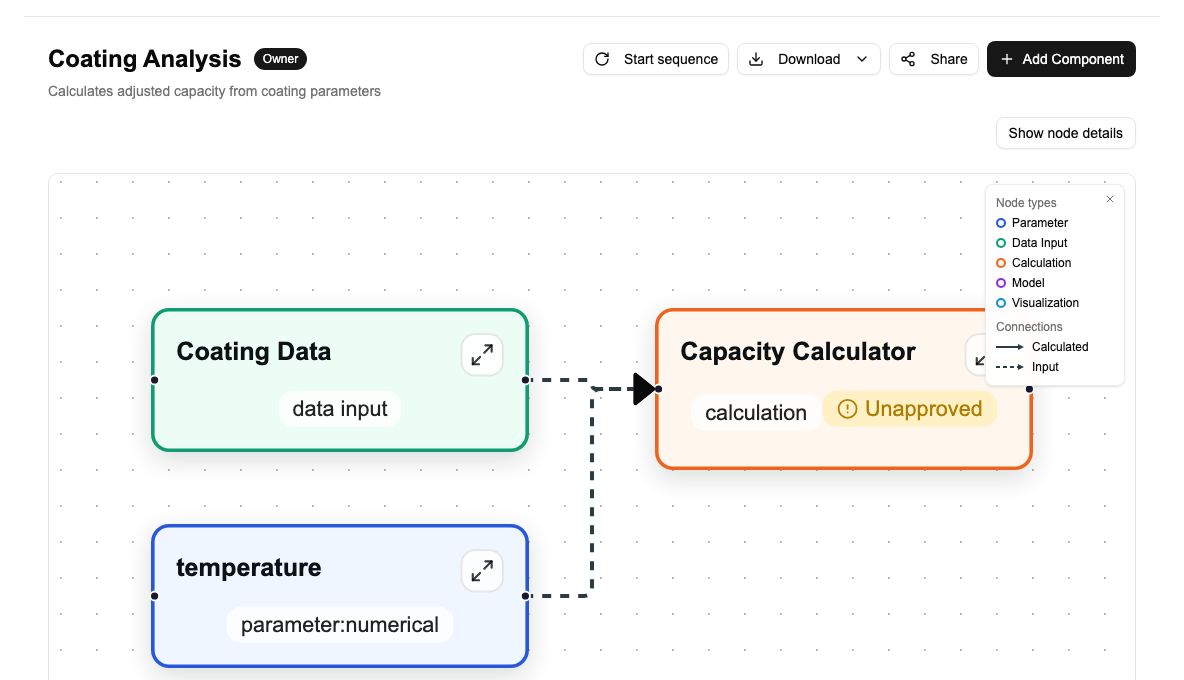
Here's a completed canvas with three connected blocks: a data input (green), a parameter (blue), and a calculation (orange). Arrows show the data flow.
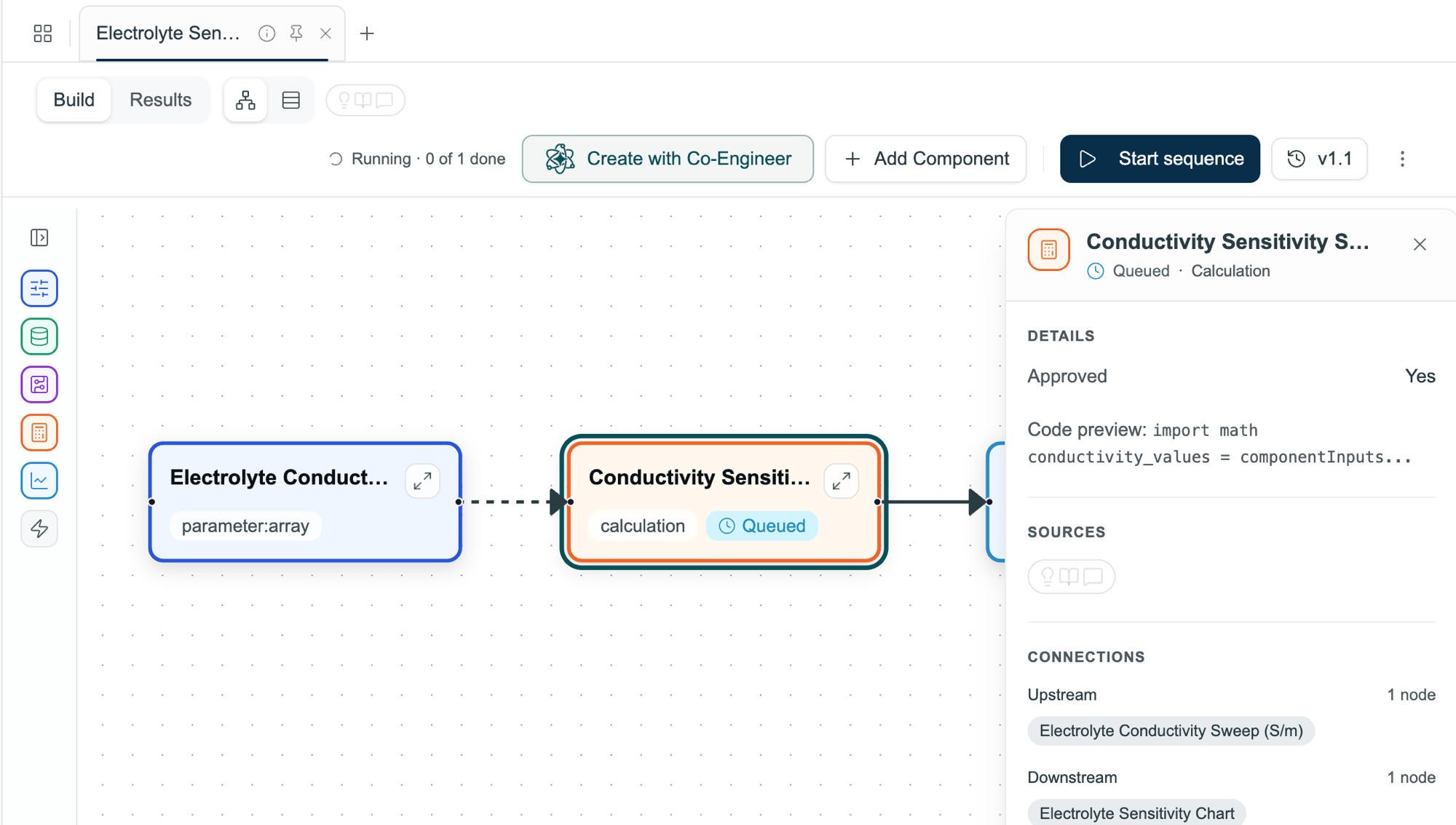
Click any block to open its detail panel and see inputs, outputs, and execution status.
Next step
→ Tutorial: Registering Your First Model — replace the Calculation block with an external model from your own code.